
Contacts Overview
A tour of the Contacts list — what columns are shown, how to search, sort, and navigate pages.
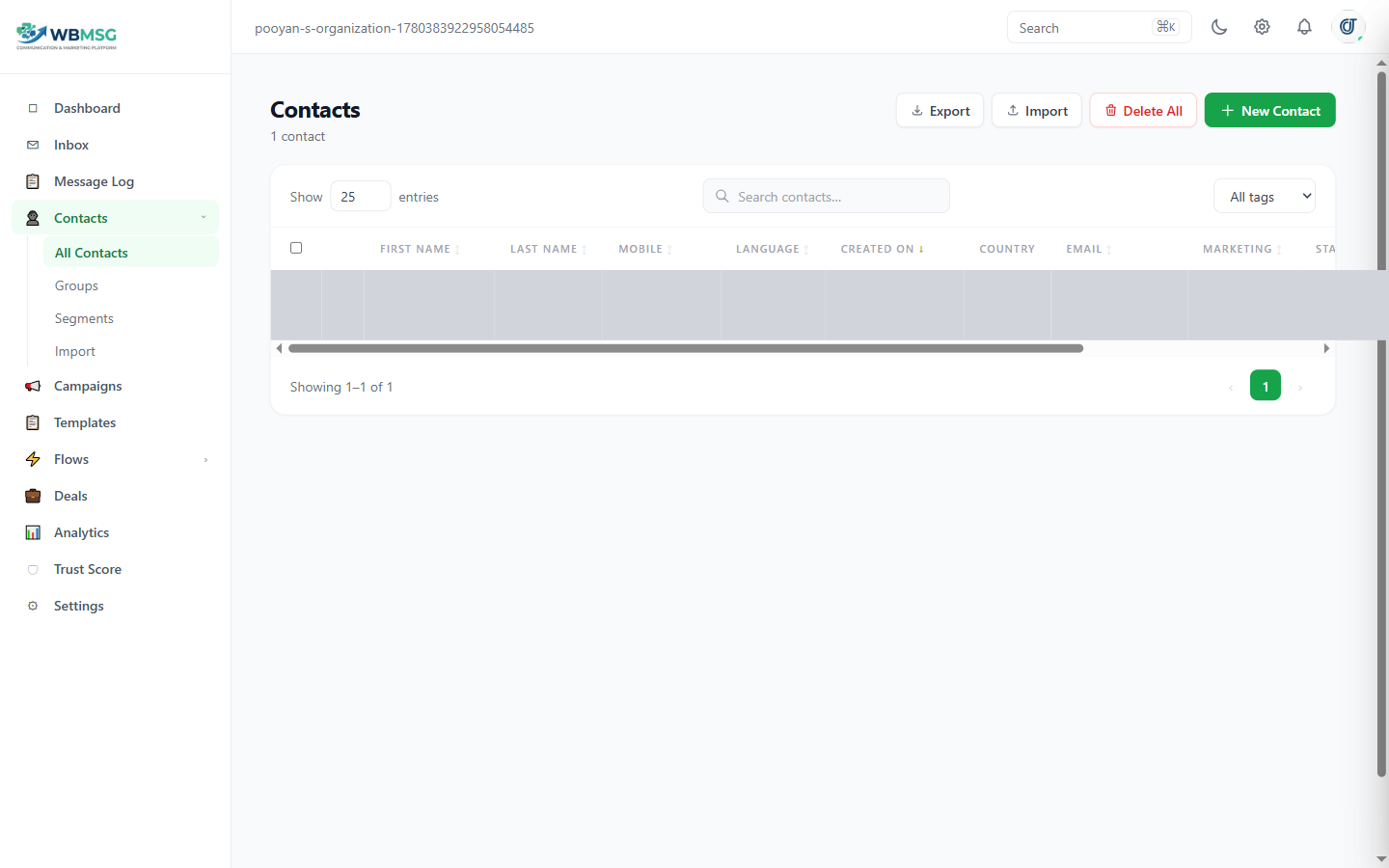
The Contacts Table
The Contacts page displays all contacts for your organization in a paginated table. Use the entries selector at the top-left to show 25, 50, or 100 rows per page.
Each row shows: First Name (with avatar initials), Last Name, Mobile number, Language code, Created On date, Country (if enabled), Email, Marketing opt-out status, Lead Status, Trust score badge, Tags (if enabled), and Owner (assigned user, if enabled).
Click the expand button (+ icon) on any row to see the contact's groups and quick-action buttons — Details, Edit, Send Template, Chat, Delete, and Assign — without opening the full profile page.
Search and Filter
Use the search box to find contacts by name, phone number, or email. Results update as you type.
If your organization has tags defined, a tag dropdown appears next to the search box — select a tag to filter the list to contacts with that tag.
Sorting
Click any sortable column header to sort by that field. Click again to reverse the direction. Sortable columns are: First Name, Last Name, Mobile, Language, Created On, Email, and Marketing (opt-out status). An arrow indicator shows the current sort field and direction.
Was this article helpful?