
Message Log
Browse every message sent and received across your organization in one place.
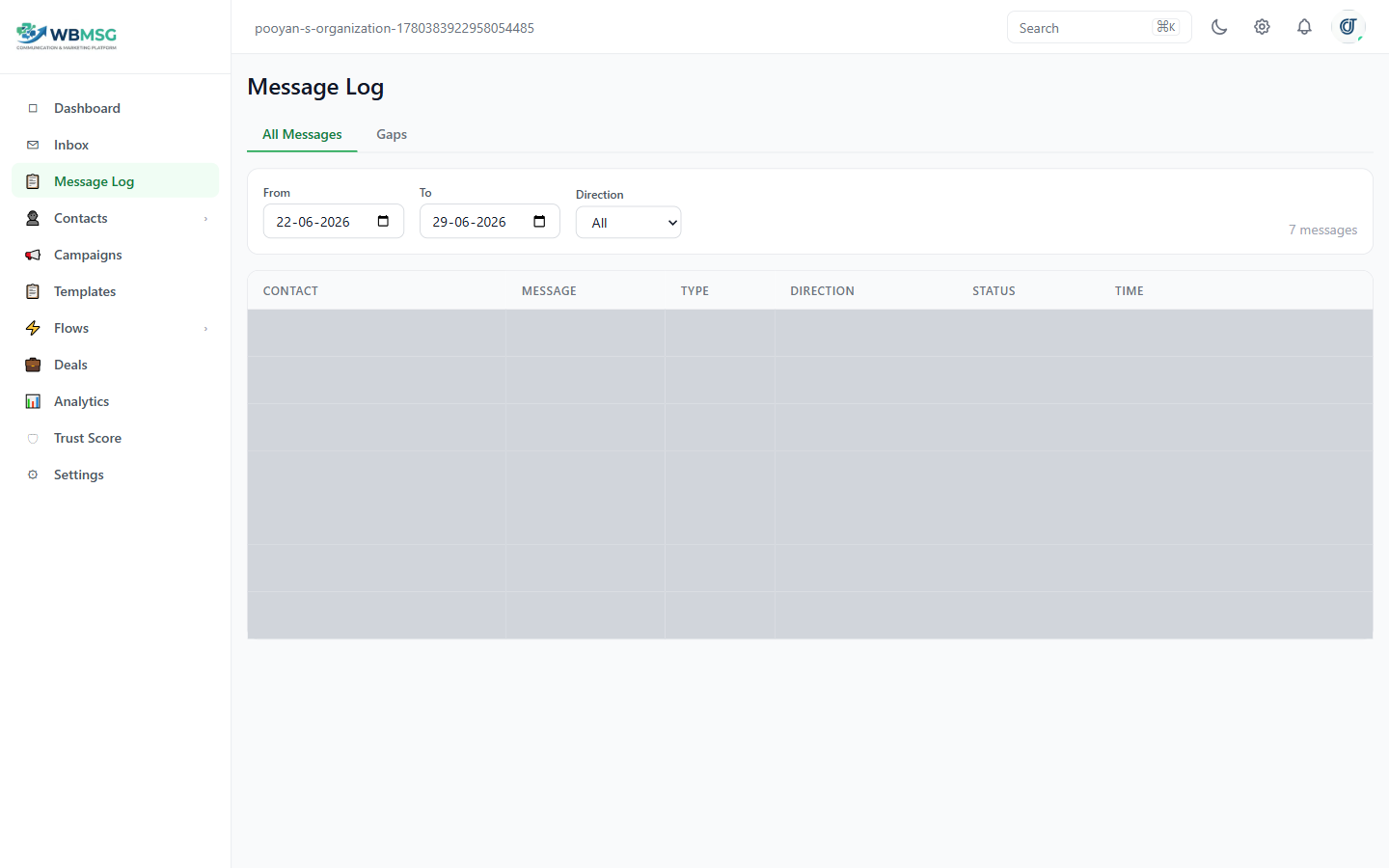
Go to Messages in the sidebar to open the Message Log.
The log shows every message sent and received across your entire organization.
Filters
From Date and To Date — narrow the log to a specific time range.
Direction — filter by All, Inbound only, or Outbound only.
Table Columns
Contact Name — the contact the message is associated with.
Message Preview — a truncated preview of the message content.
Type — the message type: text, image, video, document, audio, voice, sticker, template, or interactive.
Direction — color-coded indicator of Inbound or Outbound.
Status — the delivery status: sending, sent, delivered, read, failed, or pending.
Timestamp — when the message was sent or received.
The log is paginated at 50 messages per page. The total message count is shown above the table.
Was this article helpful?